With your profile verified, an Umrah permit takes about a minute: pick a date and a prayer-time slot, confirm, and receive a QR ticket you’ll scan at Masjid al-Haram. It’s free.
Permit vs visaYour visa lets you enter Saudi Arabia; the Umrah permit lets you enter the Haram to perform Umrah at your chosen time. You need both.
1. Open the Umrah permit
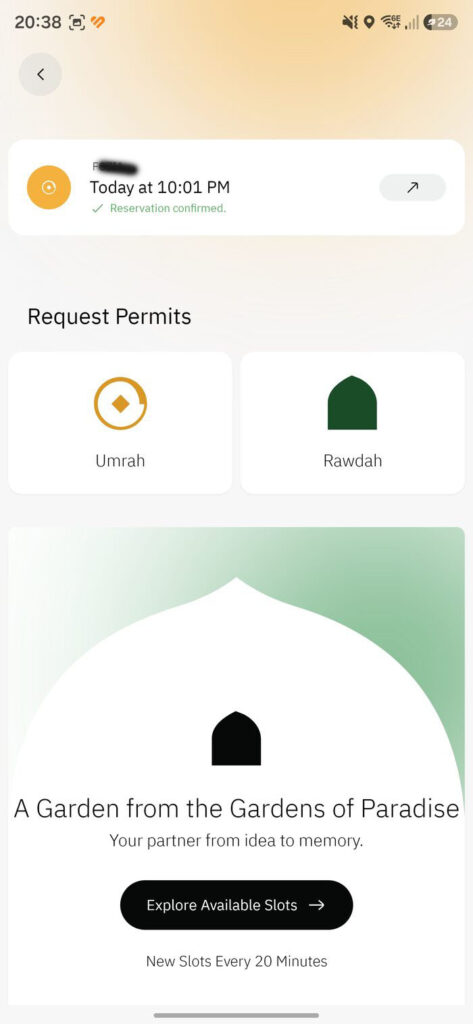
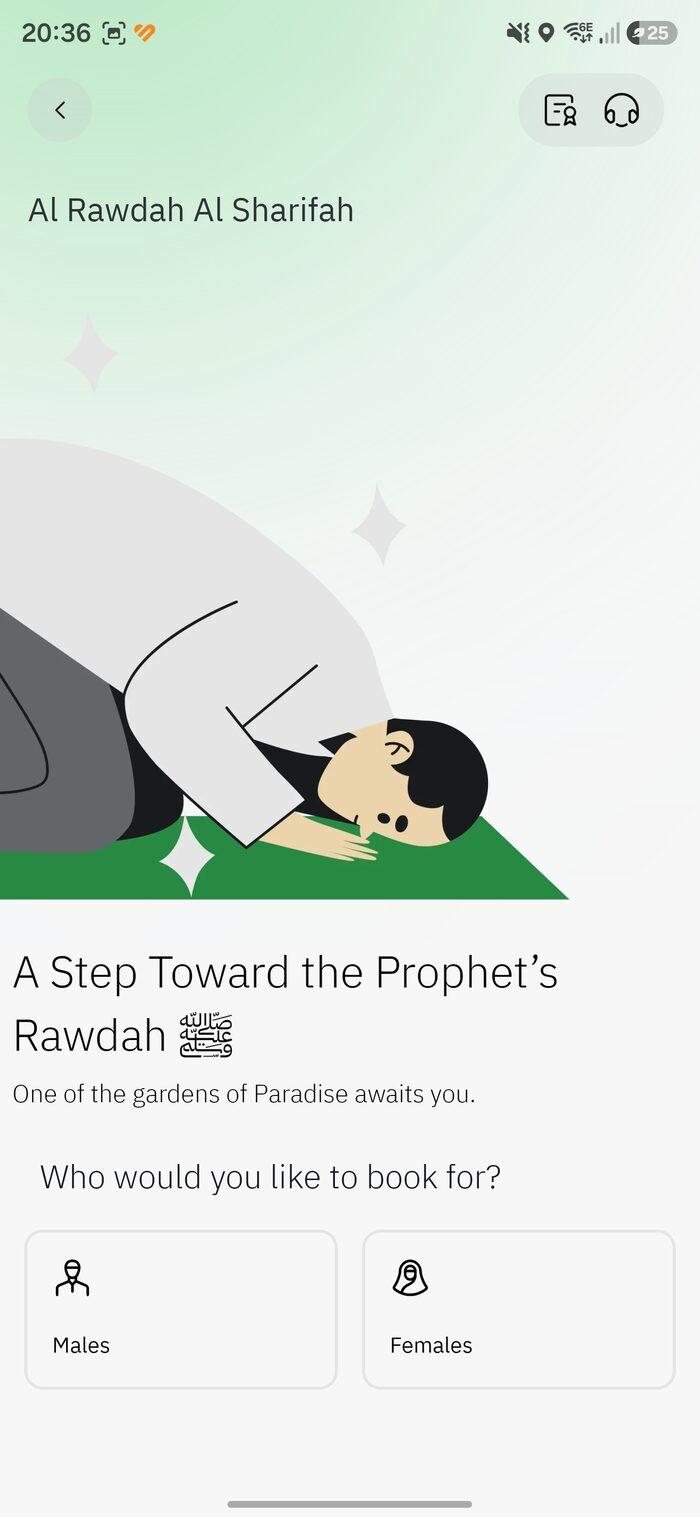
From the home screen tap the Umrah tile, or open the permits area and choose Umrah. This is also where Rawdah lives, and where you can review an existing reservation.
Request Permits -> Umrah
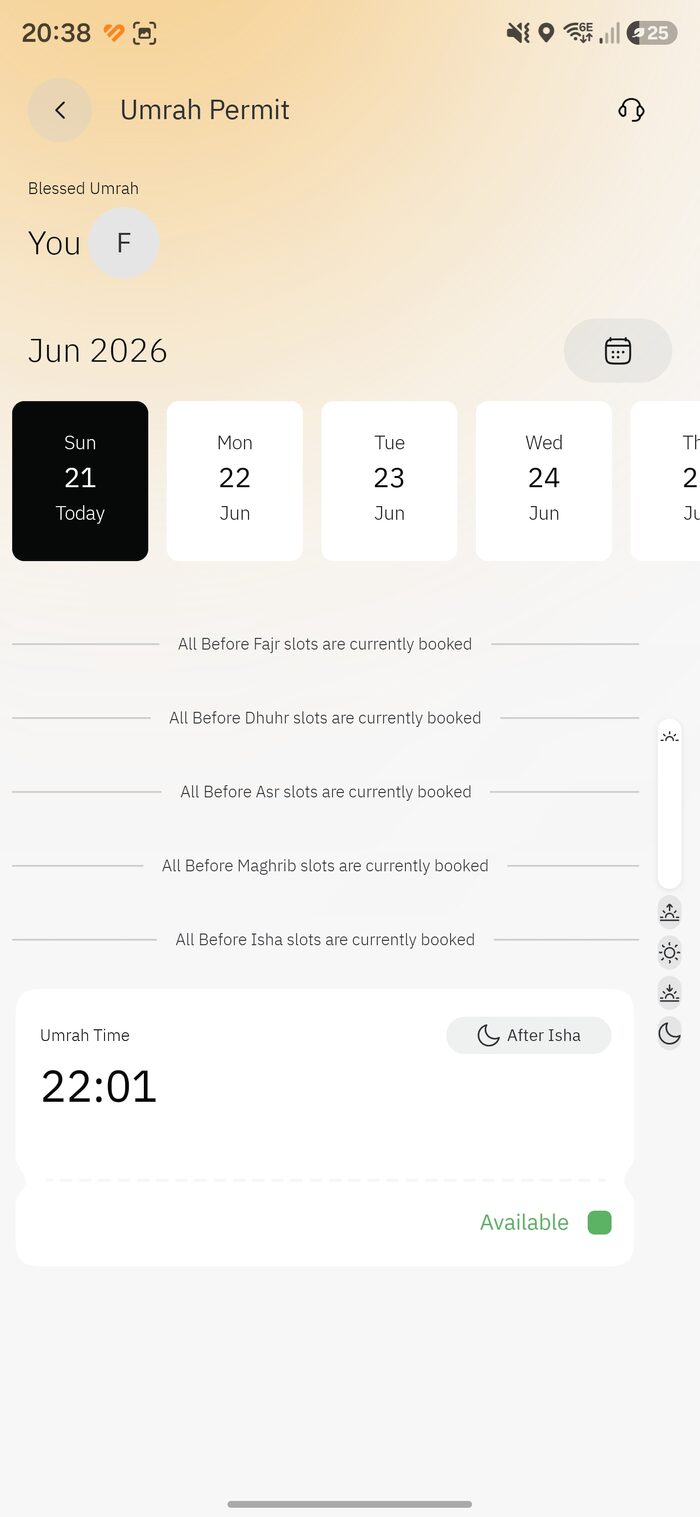
2. Pick a date and a time slot
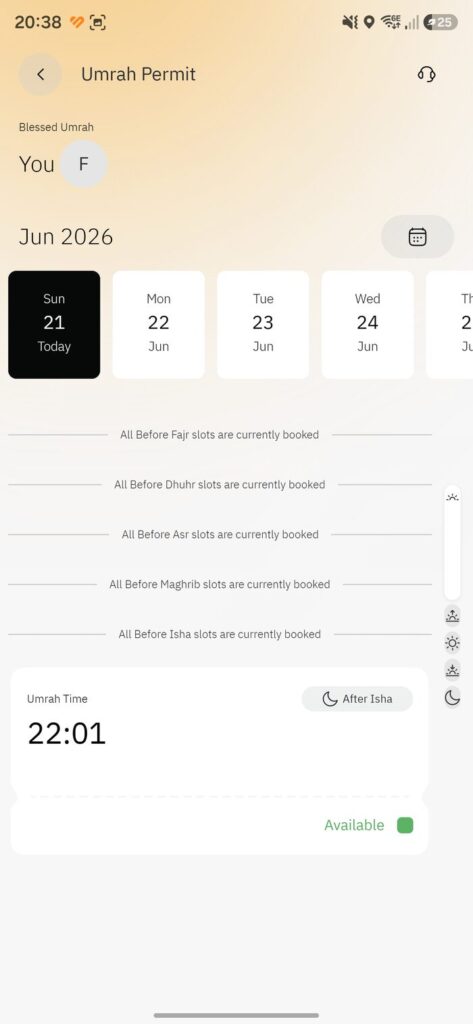
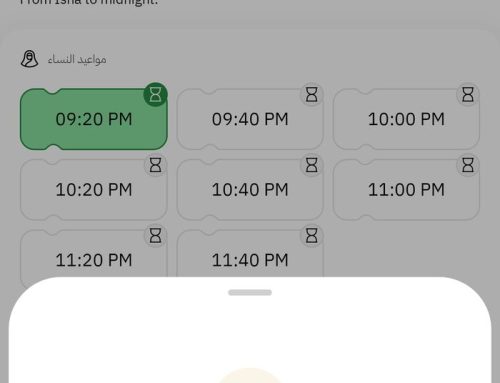
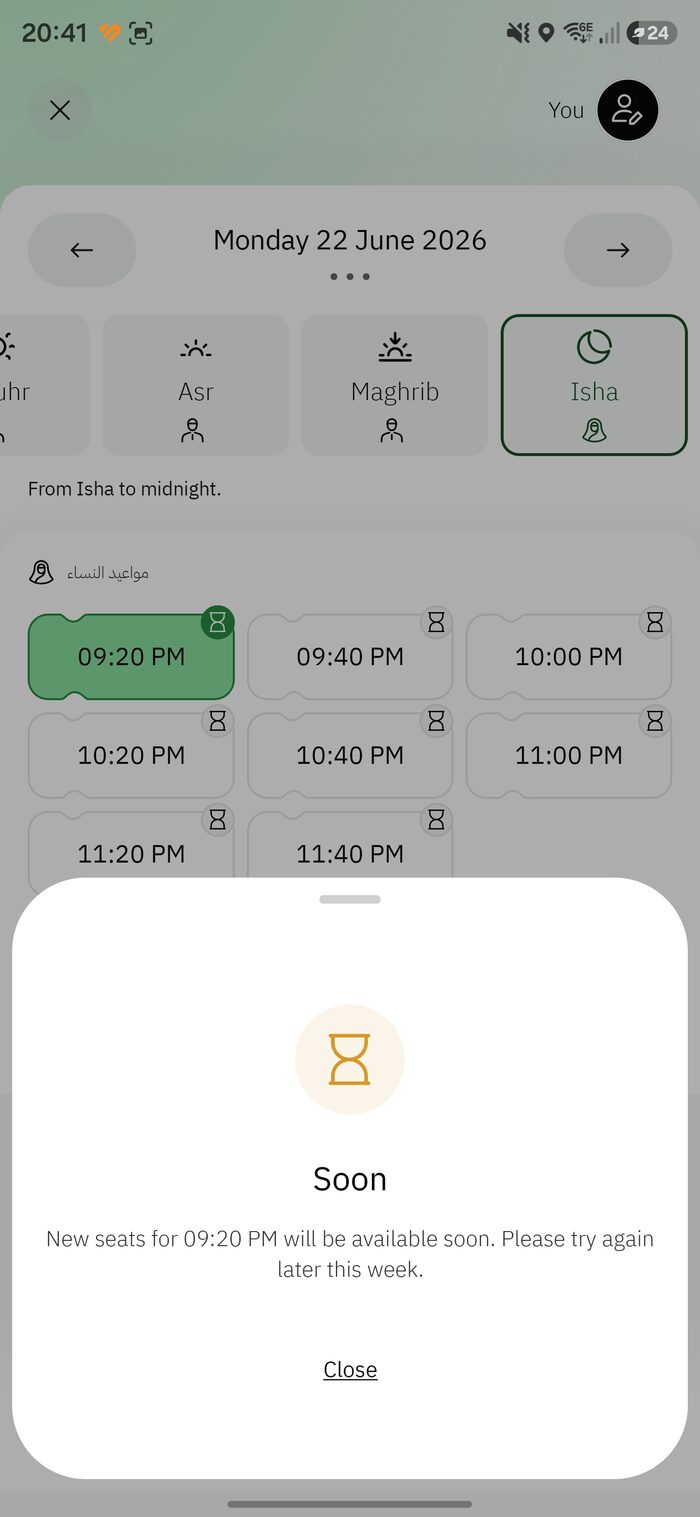
The calendar shows upcoming dates. Tap a date, then a time. Slots are grouped by prayer period — you may see notes like “All Before Fajr slots are currently booked,” with an open slot such as 22:01 After Isha marked Available in green.
Green “Available” = bookable.
Greyed or “booked” = that period is full; try another time or date.
Add companions before choosing the time if booking for family.
Choose date and an available time
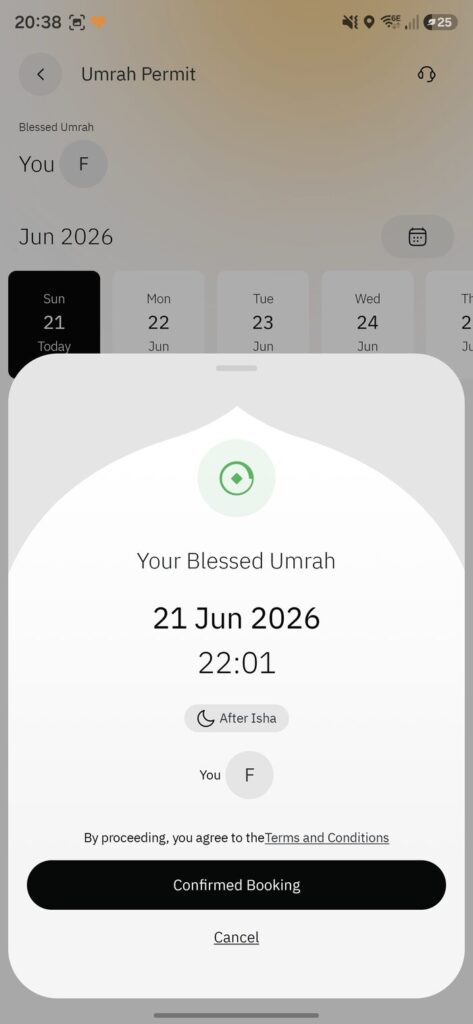
3. Review and confirm
A summary shows your Blessed Umrah date, time and prayer period. Check it, accept the Terms & Conditions, and tap Confirmed Booking.
Review -> Confirmed Booking
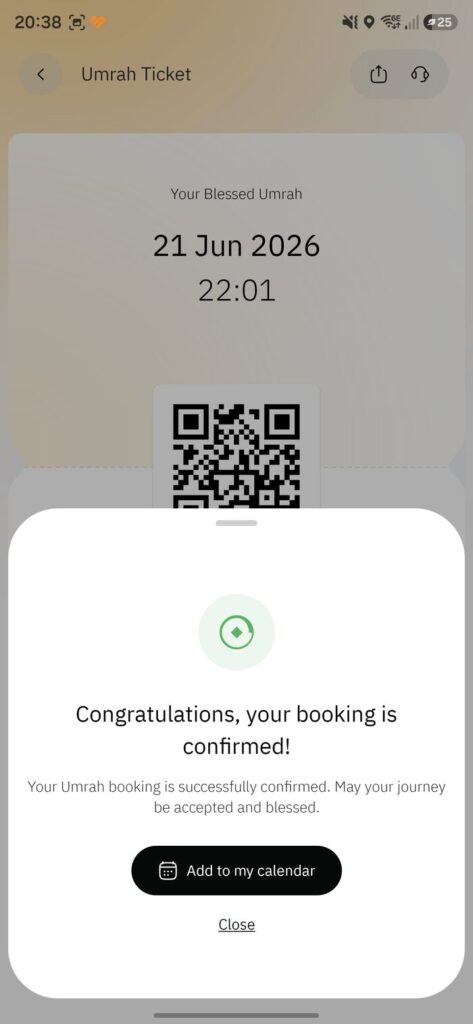
4. Booking confirmed
You’ll see “Congratulations, your booking is confirmed!” Tap Add to my calendar so you don’t miss your time.
Confirmation
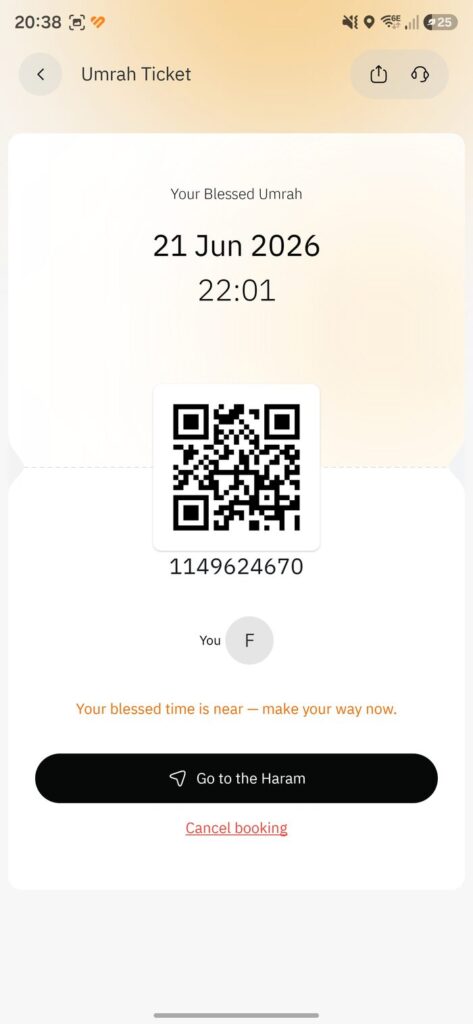
5. Your Umrah ticket and QR code
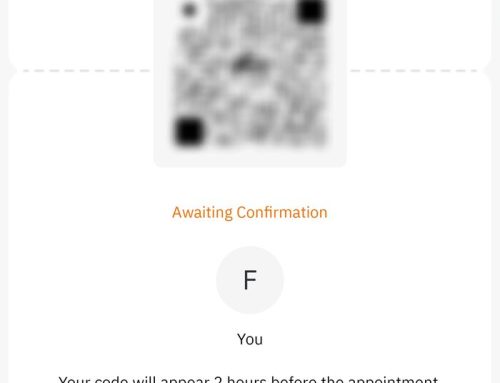
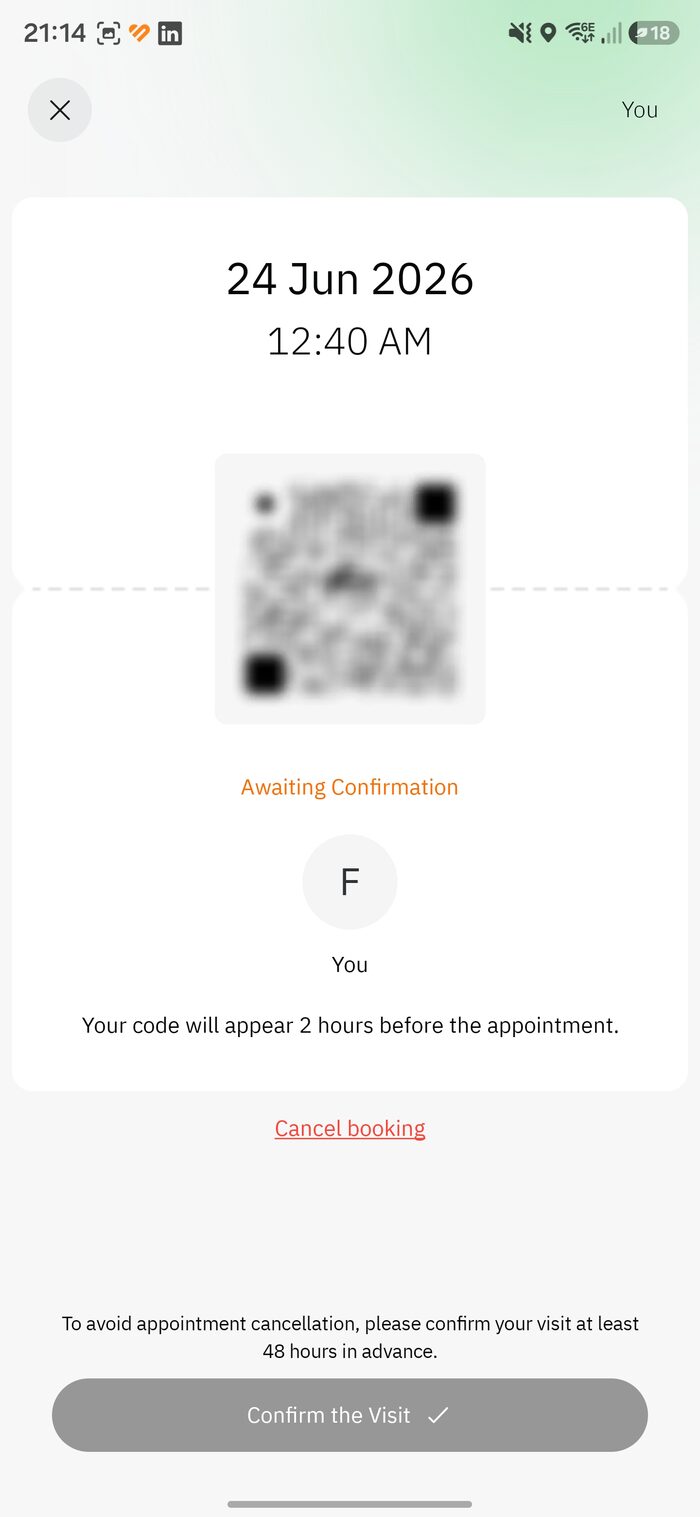
This is your permit — date, time, a QR code and a permit number. When your time nears, you’ll see “Your blessed time is near” and a Go to the Haram button.
TipScreenshot the QR immediately and keep it in your photos — gates are crowded and signal can drop. The QR is scanned at the entry gates.
Your Umrah ticket (QR and number)
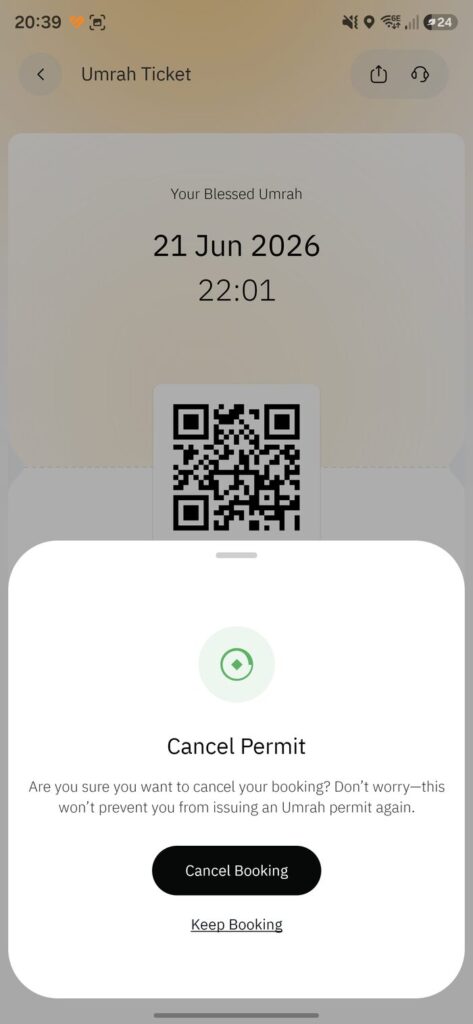
6. Need to change it? Cancel and rebook
Open the ticket and tap Cancel booking, then confirm. Cancelling won’t stop you issuing a new Umrah permit afterwards.
How often?You can hold one active Umrah permit at a time. Once your slot passes (or you cancel), you can book another — in practice roughly every other day.
Yes. The permit itself costs nothing — you book it in the Nusuk app by choosing a date and prayer-period slot, and you receive a QR ticket to scan at Masjid al-Haram's entry gates.
Leave A Comment